.png)
Published:
19/7/2026
Updated:
6/10/2026
How to Speed Up a Slow Webflow Site: 12 Proven Fixes
TL;DR: The 5 fixes that resolve most slow Webflow sites, in order of impact:
- Convert images to AVIF or WebP using Webflow's built-in conversion tool
- Eager load the hero image, lazy load everything below the fold
- Turn on HTML, CSS and JS minification in Publishing settings
- Delete third-party scripts nobody can defend
- Cut fonts to 2 families and only the weights you use
Fix the assets, not the platform. In 7 years of building Webflow sites for agencies and clients, almost every slow site I have audited was heavy on images, fonts or third-party code rather than limited by Webflow itself. All 12 fixes below are ordered by impact, so start at the top and stop when your scores are where you want them.
Why does speed matter so much?
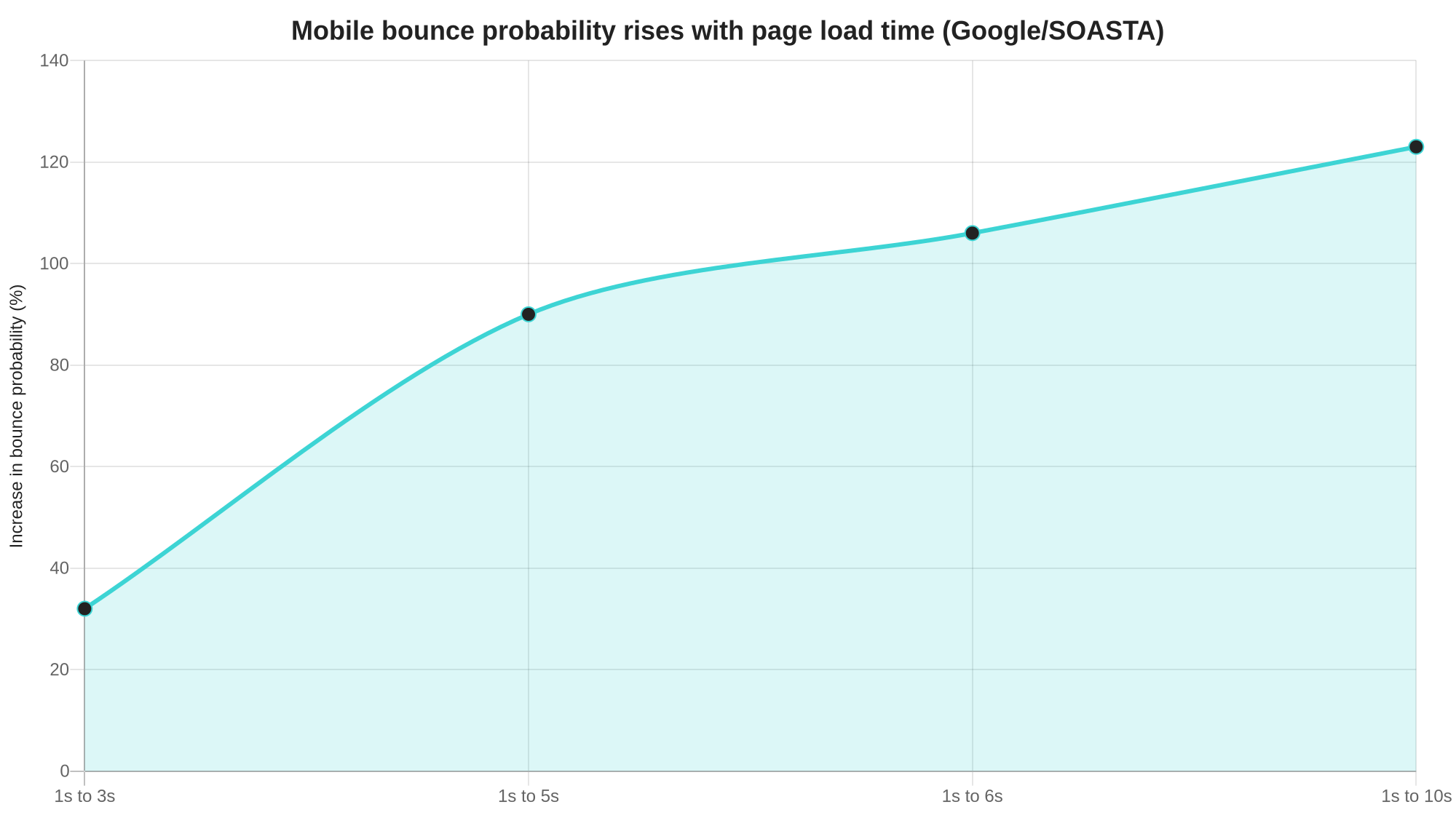
Speed matters because visitors leave slow pages before they read a word. Google and SOASTA trained a neural network on real session data and found that as mobile page load time goes from 1 second to 3 seconds, the probability of a bounce increases 32%. Stretch that to 5 seconds and it jumps 90%, and at 10 seconds it reaches 123%, according to Think with Google's mobile page speed benchmarks.
Google also gives you 3 concrete targets. A page delivers a good experience when Largest Contentful Paint happens within 2.5 seconds, Interaction to Next Paint stays at 200 milliseconds or less, and Cumulative Layout Shift stays at 0.1 or less, measured at the 75th percentile of real visits, per web.dev's Core Web Vitals documentation. Those 3 numbers are what every fix below is chasing.
Is Webflow itself the problem?
Webflow itself is almost never the problem. Webflow serves published sites through its managed hosting and global CDN, so the delivery layer is fast by default.
What slows a Webflow site down is what we put on it: oversized images, too many fonts, script-heavy embeds, and pages that try to do everything at once. That is good news, because it means you can fix it without migrating anything.
How do you speed up a Webflow site? The 12 fixes
1. Convert your images to AVIF or WebP
Images are the heaviest thing on most pages, so this is where I always start. Webflow's built-in image conversion tool compresses existing JPEG and PNG assets by converting them to AVIF or WebP directly in the Assets panel. AVIF supports higher compression than JPEG and WebP without visible quality loss, per Webflow's file type documentation. Keep SVG for logos and icons.
2. Let responsive variants do their job
Webflow automatically generates responsive variants with srcset for inline JPG, PNG and WebP images, so phones get smaller files than desktops. The catch: images inside rich text elements do not get variants, per the responsive images documentation. For blog bodies, resize and compress images before uploading instead of relying on Webflow.
3. Lazy load below the fold, eager load the hero
Webflow sets new images to lazy load by default, which is what you want for everything below the fold. The mistake I see constantly is leaving the hero image on lazy. Your LCP element should load as early as possible, so switch the biggest above-the-fold image to eager in its settings panel.
4. Turn on minification
Site settings has a Publishing tab with advanced publishing options to minify HTML, CSS and JS. Minification is a checkbox, it costs nothing, and it strips whitespace and comments from every file you serve. There is no reason to leave it off on a production site.
5. Audit your interactions
Every Webflow interaction adds JavaScript work, and scroll-based animations run continuously while the user scrolls. Delete interactions tied to elements that no longer exist, and question any animation that does not earn its keep. I compared the trade-offs in my Webflow interactions vs GSAP post.
6. Cut third-party scripts
Chat widgets, heatmaps, tag managers and tracking pixels are the silent killers of INP. In audits I regularly find scripts for tools the team stopped using a year ago. List every script in your custom code and page settings, then remove anything nobody can defend.
7. Tame your fonts
Each font family and weight is a separate download that can block text rendering. Pick 1 heading family and 1 body family, load only the weights you actually use, and prefer modern WOFF2 files. If a weight appears in only 1 forgotten element, restyle the element and drop the weight.
8. Prefer image elements over background images
Background images set in CSS do not get responsive variants, so a 2400px hero background ships at full size to every phone. Where the design allows, use a real image element so srcset and lazy loading can work. I reserve CSS backgrounds for textures and patterns that are small anyway.
9. Keep collection lists lean
Webflow allows up to 40 Collection lists per page, 10 nested lists, and 100 items per list without pagination, per its dynamic content limits. Those numbers are a ceiling, not a goal. Every item renders DOM nodes and often an image, so cap lists at what the design needs and paginate the rest.
10. Use video and Lottie deliberately
Autoplaying background video is the single heaviest element I see on portfolio and agency sites. If the video is decorative, replace it with a compressed poster image, or at minimum keep it short, muted and small. The same logic applies to Lottie: 1 purposeful animation beats 5 decorative ones.
11. Clean up unused styles and classes
Months of iteration leave behind classes and combo classes nothing uses. Webflow's Style selectors panel finds and cleans up unused classes across the site, which keeps generated CSS smaller. I run that cleanup before every launch and review what it flags first, since classes used only in component states can look unused.
12. Measure before and after every change
Run PageSpeed Insights before touching anything, save the numbers, and re-run after each fix. Field data reflects the 75th percentile of real visits, so lab scores and real-user scores can differ. Change 1 thing at a time, or you will never know which fix moved the needle.
What order should you work through the 12 fixes?
Most sites do not need all 12. Work in 3 waves and re-measure after each one:
- Wave 1, assets: fixes 1, 2, 3 and 8. Images alone usually close most of the gap.
- Wave 2, code weight: fixes 4, 6, 7 and 11. Minification, scripts, fonts and unused CSS.
- Wave 3, structure: fixes 5, 9 and 10. Interactions, collection lists and heavy media.
When should you hand this to a developer?
If you have done the image and script passes and your LCP is still stubborn, the remaining problems are usually structural: layout choices, render-blocking embeds, or CMS templates that need rethinking. That is the point where an hour of experienced eyes saves a week of guessing.
Speed work also compounds with everything in my Webflow SEO audit guide, since the same crawl and rendering budget serves both goals. If you would rather hand the whole thing off, book a free 15-minute call and we can scope a performance pass.
FAQ
What is a good load time for a Webflow site?
Aim for Google's Core Web Vitals targets: Largest Contentful Paint within 2.5 seconds, Interaction to Next Paint at 200 milliseconds or less, and Cumulative Layout Shift at 0.1 or less, measured at the 75th percentile of real visits. If your mobile LCP is under 2.5 seconds, you are in good shape.
Does Webflow hosting make sites slow?
No. Webflow serves published sites through managed hosting with a global CDN, so delivery is fast by default. In practice, slow Webflow sites are caused by oversized images, heavy scripts, too many fonts, or bloated pages, all of which you can fix without leaving the platform.
What image format should I use in Webflow?
Use AVIF or WebP for photos and complex images, and SVG for logos and icons. Webflow's built-in image conversion tool can convert existing JPEG and PNG assets to AVIF or WebP directly in the Assets panel, and AVIF generally compresses further than WebP at similar quality.
Do Webflow interactions slow down a site?
They can. Every interaction adds JavaScript work, and scroll-based animations run while the user scrolls. A few purposeful interactions are fine on most sites; problems appear when pages stack many animations or keep interactions tied to deleted elements, so audit and remove what you do not need.
Does site speed help SEO?
Yes, in two ways. Core Web Vitals are part of how Google evaluates page experience, and Google's research shows bounce probability rises sharply as load time grows, which means slow pages lose visitors before the content can work. Speed alone does not outrank better content, but it removes a real handicap.
How do I test my Webflow site's speed?
Run PageSpeed Insights on your key pages and look at both lab scores and field data, which reflects the 75th percentile of real visits. Test mobile first, change one thing at a time, and re-test after each fix so you know which change actually moved the numbers.